
Quick Answer:
The most common tech problems students face are: sluggish laptop performance, unstable Wi-Fi connections, lost files from unsaved documents, and Bluetooth peripheral failures. The majority of these issues are software-based and fixable in minutes — through startup app management, network adapter resets, cloud backup configuration, and device re-pairing. Knowing how to handle these problems yourself prevents costly repairs and academic setbacks.
Key Takeaways
- A sluggish laptop is almost always a software problem — startup apps, insufficient free storage, or outdated drivers — not a hardware failure.
- Campus Wi-Fi drops are rarely fixable on your end, but your laptop's connection management settings can significantly improve stability.
- The only reliable protection against losing academic work is automated cloud sync — never save important documents exclusively on your local hard drive.
- Bluetooth failures are almost always resolved by completely removing the device from system memory and re-pairing from scratch.
- Online exam failures are usually preventable with a five-minute pre-exam tech checklist.
- Most common tech problems cost nothing to fix if you follow the right diagnostic steps before assuming hardware replacement is needed.
Why Student Tech Problems Hit Differently
A tech failure during a critical academic moment — your laptop freezing mid-exam, your research paper corrupting on submission day, or your internet dropping during a live Zoom presentation — creates a specific kind of panic that is hard to describe if you haven't experienced it. The stakes feel much higher because they directly affect your academic record.
The good news is that the vast majority of these crises are both preventable and fixable without professional help. Students who learn basic tech troubleshooting save money, reduce stress, and — critically — keep their academic momentum when equipment issues arise.
This guide covers every major category of tech problem students face, explains what is actually causing them, and gives you step-by-step instructions for fixing them. For browser-related issues specifically, Mozilla Support is one of the most thorough free troubleshooting resources available — covering connectivity, crashes, and performance across all operating systems.
Problem 1: Sluggish Laptop Performance
What Is Actually Causing It
A slow laptop is almost never caused by the laptop being "too old." In most cases, the culprit is one of three things: too many programs launching at startup, insufficient free storage space, or an accumulation of background processes that Windows or macOS is running without your knowledge.
Fix 1: Manage Startup Applications
Every time you install a new application, many programs — Spotify, Steam, Skype, OneDrive sync clients, Adobe updaters — configure themselves to launch silently when your computer boots. After two years of software installation, you might have twenty programs loading in the background before you've even opened your browser.
On Windows:
1. Press `Ctrl + Shift + Esc` to open Task Manager
2. Click the "Startup" tab
3. Right-click any program you don't need at boot and select "Disable"
4. Restart your laptop
Disabling five to ten startup applications can reduce boot time from three minutes to under thirty seconds.
On Mac:
1. Go to System Settings → General → Login Items
2. Remove applications from the "Open at Login" list that you don't need immediately on startup
Fix 2: Free Up Storage Space
Windows and macOS use a portion of your hard drive as virtual memory (called swap space or pagefile). When your hard drive is over 85% full, the operating system cannot allocate enough virtual memory, and your system slows dramatically.
Target: Keep at least 15% of your hard drive free at all times.
What to move or delete:
- Downloaded videos, old game installations, and completed semester project folders
- Move these to an external hard drive or upload them to Google Drive
- Use the Windows Disk Cleanup tool (search "Disk Cleanup" in the Start menu) to remove temporary files and system caches
Fix 3: Update Your Drivers
Outdated graphics drivers, network adapter drivers, and chipset drivers can cause system instability, slow performance, and overheating.
On Windows:
1. Right-click the Start button and select Device Manager
2. Look for any items with a yellow warning triangle
3. Right-click the flagged device and select "Update driver → Search automatically"
Alternatively, visit your laptop manufacturer's website (Dell, HP, Lenovo, ASUS) and download the latest driver package for your specific model.
Fix 4: Disable Indexing for Large Folders
Windows Search continuously indexes files in the background to enable fast search results. If you have folders with thousands of files (like raw research data or large media libraries), indexing consumes CPU and disk resources constantly.
Search for "Indexing Options" in the Windows search bar, click "Modify," and remove any large data folders from the indexed list.
Problem 2: Unstable Campus Wi-Fi
Understanding the Campus Network Problem
University Wi-Fi networks are shared by thousands of devices simultaneously. Unlike a home router managing a household of four people, a campus access point might handle 500 student devices at once. During peak hours — 10 AM to 3 PM — expect slower speeds and occasional drops regardless of what your device does.
That said, your laptop's own network management can make the situation better or worse.
Fix 1: Forget and Reconnect
If your laptop refuses to connect to a campus network that your phone joins without issue, the network profile on your computer is likely corrupted.
1. Go to your Wi-Fi settings
2. Click on the campus network name
3. Select "Forget" or "Forget this network"
4. Reconnect from scratch, re-entering your credentials
This forces your laptop to request a fresh IP address from the DHCP server rather than trying to use a cached (and potentially expired) address.
Fix 2: Set Wi-Fi to Preferred Connection Only
Some laptops will automatically switch between Wi-Fi networks and Bluetooth hotspots, causing brief disconnections. On Windows, go to Network and Internet Settings → Wi-Fi → Manage Known Networks, and set your campus network as the highest-priority connection.
Fix 3: Update the Wireless Network Adapter Driver
If drops occur consistently across multiple locations on campus, your wireless adapter driver may be outdated.
1. Open Device Manager (right-click Start button)
2. Expand "Network Adapters"
3. Right-click your wireless adapter → "Update driver"
4. Restart after installation
Fix 4: Use the 5 GHz Band When Available
Most modern campus Wi-Fi networks broadcast on both 2.4 GHz (longer range, more congestion) and 5 GHz (shorter range, significantly less interference). When you are sitting in the library or a classroom within range of an access point, connecting to the 5 GHz network (usually labeled with "5G" or "_5" in the network name) produces noticeably more stable connections.
Problem 3: Lost or Corrupted Files
The Only Real Solution Is Automated Backup
Losing a 3,000-word essay the night before submission is avoidable — but only if you have a system in place before it happens. After the fact, file recovery tools exist but have no guarantee of success.
Fix 1: Enable Real-Time Cloud Sync
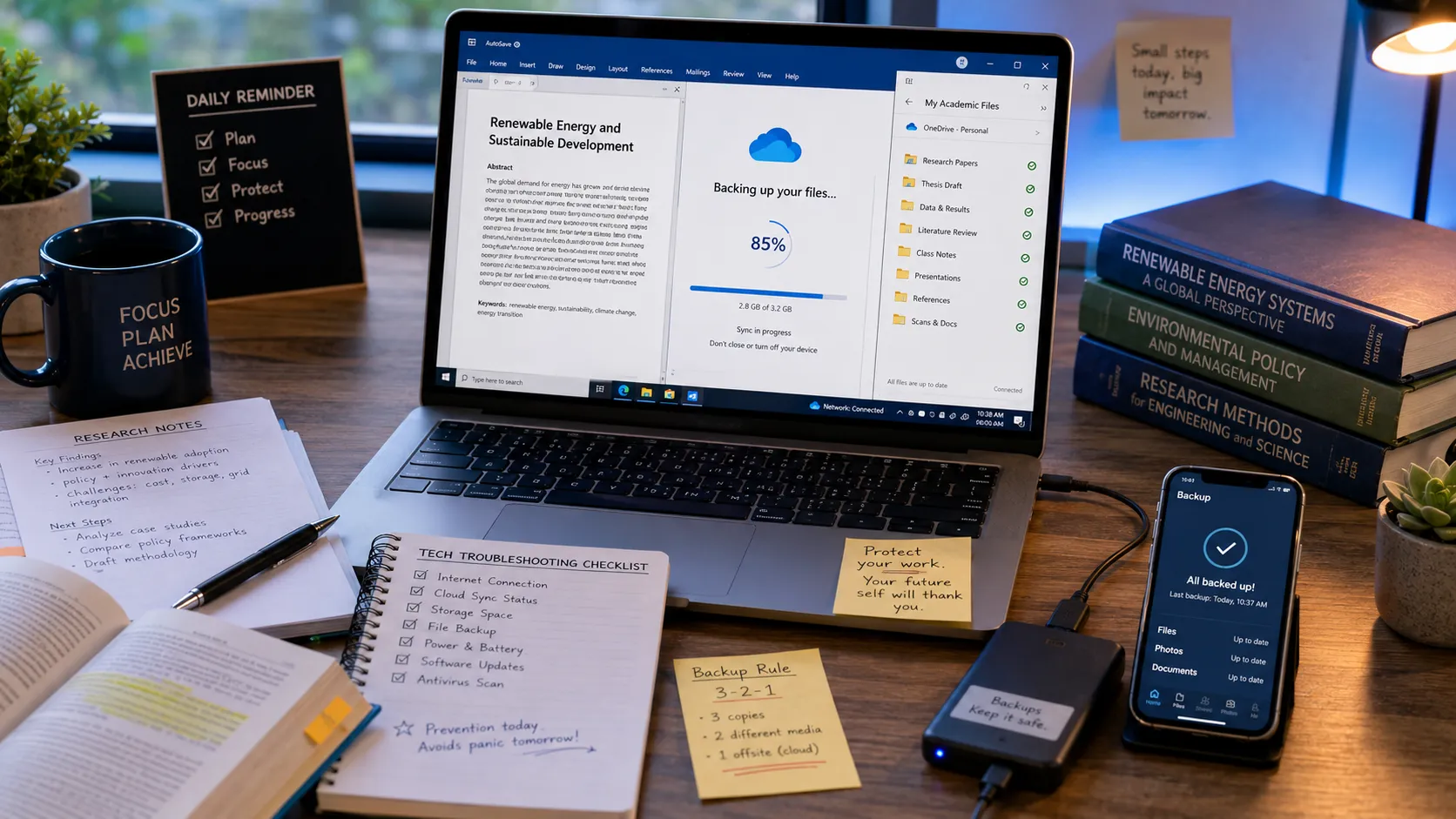
Install Google Drive, Microsoft OneDrive, or Dropbox on your laptop and configure them to automatically sync your Documents folder. Once set up, every file you save in your Documents folder is immediately copied to the cloud.
If your laptop is stolen, runs out of battery mid-session, or the hard drive fails, your files are safe. You can access them from any browser or device within minutes.
Most effective setup: Save all academic work inside your Google Drive or OneDrive folder — not on the Desktop or in a separate Documents folder. This ensures cloud sync is always active for every academic file.
Fix 2: Use Google Docs for Long-Form Writing
Google Docs saves every keystroke automatically as you type, to the cloud. There is no "Save" button because saving is continuous. A browser crash, power failure, or accidental window close will not lose a single sentence.
For students who prefer Microsoft Word, enable the AutoSave toggle at the top-left corner of the Word window. This requires that the document be saved to OneDrive — but once configured, it provides the same continuous save functionality.
Fix 3: Use Version History
Both Google Docs and OneDrive maintain version history for your documents. If you accidentally delete a large section of your essay, you can view and restore any previous version from the last 30 to 90 days. In Google Docs, access this under File → Version History → See Version History.
Problem 4: Bluetooth and Peripheral Connectivity Failures
Why Bluetooth Seems to Randomly Stop Working
Bluetooth devices store a unique pairing code in your laptop's memory after the initial setup. Over time — especially after operating system updates — these stored pairing codes can become mismatched with the codes stored on the device itself. The result is a device that claims to be "connected" but produces no audio, no cursor movement, or no input response.
Fix 1: Complete Removal and Re-Pairing
This is the most effective solution for any Bluetooth issue:
1. Go to your Bluetooth settings
2. Find the problem device and click "Remove device" or "Forget" (not just disconnect)
3. Power the device completely off
4. Hold the device's pairing button until the indicator light flashes rapidly (entering pairing mode)
5. On your laptop, scan for new devices and connect
Important: Simply turning Bluetooth off and on, or pressing "Disconnect" and "Connect" without removing the device, almost never resolves pairing code mismatches.
Fix 2: Update Bluetooth Driver
Bluetooth adapter drivers are separate from Wi-Fi drivers and need independent updates. In Device Manager, expand "Bluetooth," right-click your Bluetooth adapter, and select "Update driver."
Fix 3: Check for 2.4 GHz Interference
Bluetooth operates on the 2.4 GHz frequency band — the same band used by many Wi-Fi networks, microwave ovens, and baby monitors. In a dense campus environment with hundreds of overlapping Wi-Fi networks, Bluetooth interference can cause headphone audio stuttering and mouse cursor lag. Moving closer to your device or temporarily disabling your Wi-Fi connection (if that is feasible) can confirm whether interference is the cause.
Problem 5: Zoom and Video Conferencing Performance
The Most Common Causes
Zoom and video calls are disproportionately resource-intensive because they simultaneously encode and decode video streams, process audio, and maintain a real-time network connection. On a laptop with limited RAM or CPU capacity, this creates visible performance degradation across your entire system.
Fix 1: Close All Other Applications Before a Call
Before joining any video call, close every browser tab, application, and background process that is not necessary. A Zoom call running alongside a dozen Chrome tabs, Spotify, and an active OneDrive sync will produce lag, choppy audio, and camera freeze.
Fix 2: Disable HD Video in Zoom Settings
Zoom's default settings transmit your video in HD (720p or 1080p), which uses approximately four times the bandwidth and processing power of standard definition video. In Zoom Settings → Video, uncheck the HD option. For most academic video calls where you are a participant rather than presenting, this makes no visible difference in appearance to others.
Fix 3: Use a Wired Ethernet Connection When Possible
Most campus library study rooms and many student accommodation buildings have Ethernet ports available. A wired connection provides significantly more stable bandwidth than Wi-Fi for video calls, eliminating most mid-call dropouts.
The Five-Minute Pre-Exam Tech Checklist
Online exams represent the highest-stakes tech dependency in student life. Implement this checklist 30 minutes before any online exam:
1. Plug into power: Do not rely on battery estimates. Plug into the wall.
2. Close all unnecessary apps: Disable Steam, close all browser tabs except the exam portal, quit Spotify.
3. Pause automatic updates: Windows Update and macOS system updates can trigger mid-session. Pause them for 24 hours before the exam.
4. Test your microphone and camera (if required): Do this in the Zoom or exam platform's test interface 10 minutes before.
5. Write down your professor's email on paper: If your internet fails during the exam, you need to be able to email them from your phone immediately.
6. Save your backup plan: Know which campus library has open computers as a backup in case your equipment fails entirely.
Frequently Asked Questions (FAQ)
When should I actually go to a repair shop?
Take your laptop to a professional when: the issue involves hardware (cracked screen, damaged charging port, swollen battery, loud fan noise suggesting imminent failure), you have fully completed all software troubleshooting steps without improvement, or you suspect hard drive failure (unusual clicking or grinding sounds).
Does keeping my laptop plugged in all the time damage the battery?
Modern laptops have smart charging circuits that stop active charging at 100%. However, maintaining a battery constantly at maximum charge slightly degrades its long-term cycle capacity. For optimal longevity, let the battery discharge to around 20% occasionally, and consider enabling any "battery health mode" or "optimized charging" feature your laptop's software offers.
Why does my laptop overheat during video calls?
Video conferencing applications force continuous simultaneous use of your CPU, GPU, and network adapter — a combination that generates significant heat. Ensure your laptop is resting on a hard, flat surface so the bottom ventilation grilles can breathe. Fabric surfaces (beds, sofas) block airflow entirely and can push temperatures to levels that trigger thermal throttling — where the CPU reduces its own speed to prevent damage.
How do I recover a file I forgot to save?
Check the application's auto-recovery folder first. Microsoft Word stores temporary auto-recovery files in `C:\Users\[username]\AppData\Roaming\Microsoft\Word`. If the file does not appear on next launch, search your system for `.tmp` files. For documents written in Google Docs, all versions are saved automatically — nothing is ever truly lost.
Sum Up
The technology students depend on daily is not fragile — it just requires basic, consistent maintenance to perform reliably. A laptop that receives periodic storage cleanup, updated drivers, and managed startup applications will perform well for years. Files backed up to the cloud cannot be lost. Bluetooth devices re-paired correctly will connect reliably every time.
Knowing these fixes means a tech problem at a critical academic moment becomes a five-minute inconvenience rather than a crisis. For a broader look at how to build a digital workflow that supports your academic performance, read our guide on the Best Free Academic Tools for Students.